> ## Documentation Index
> Fetch the complete documentation index at: https://docs.chainlit.io/llms.txt
> Use this file to discover all available pages before exploring further.
# Command
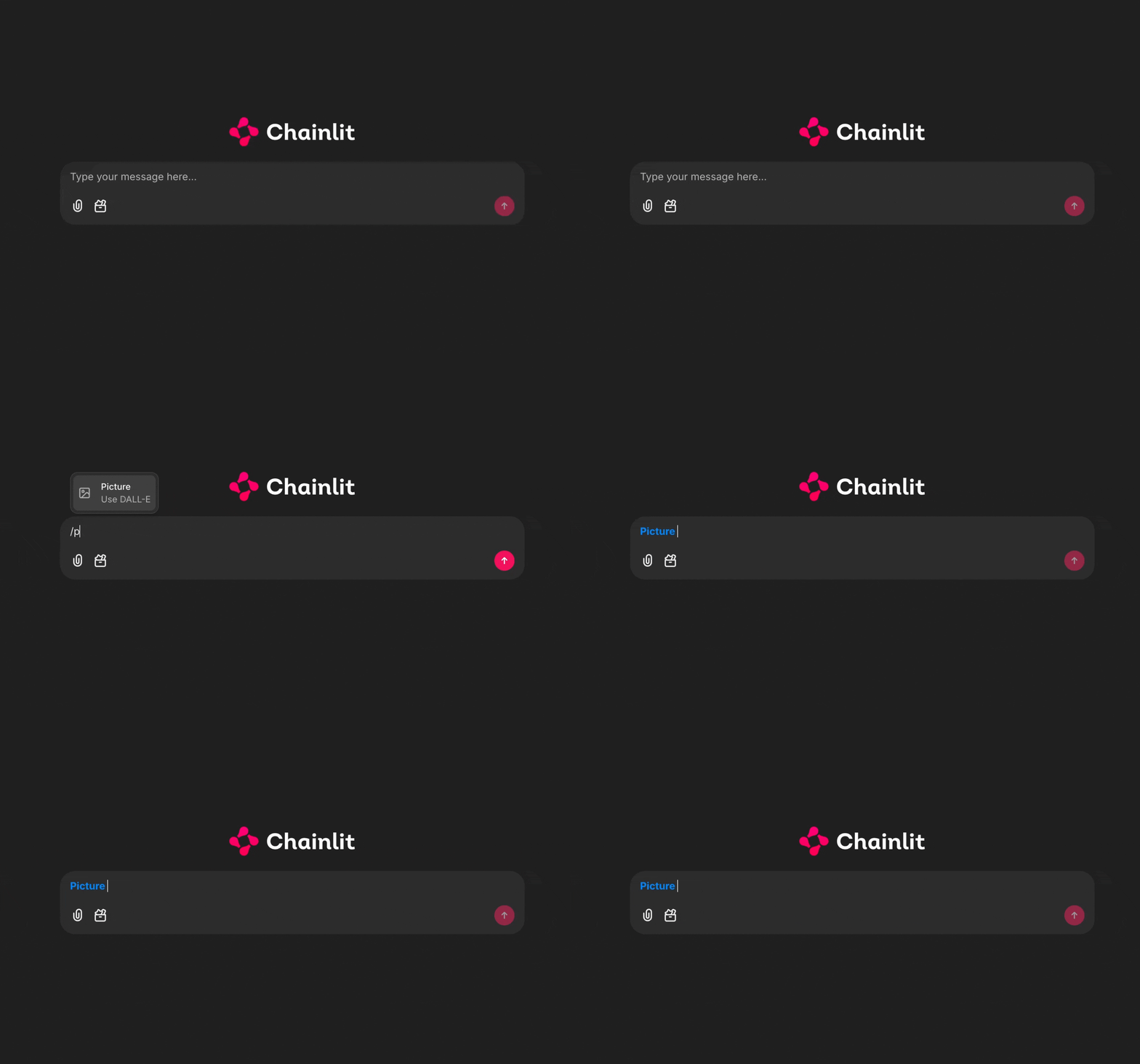
Commands are a great way to capture user intent in a deterministic way.
## Attributes
Identifier for the command, this will be used in the UI.
The lucide icon name for the command. See [https://lucide.dev/icons/](https://lucide.dev/icons/).
The description of the command.
Whether to display the command as a button in the message composer.
Whether to keep the command active after the user sent the message.
## Set available commands
You can set the available commands at any moment using the `cl.context.emitter.set_commands` method.
```python theme={null}
import chainlit as cl
commands = [
{"id": "Picture", "icon": "image", "description": "Use DALL-E"},
{"id": "Search", "icon": "globe", "description": "Find on the web"},
{
"id": "Canvas",
"icon": "pen-line",
"description": "Collaborate on writing and code",
},
]
@cl.on_chat_start
async def start():
await cl.context.emitter.set_commands(commands)
@cl.on_message
async def message(msg: cl.Message):
if msg.command == "Picture":
# User is using the Picture command
pass
pass
```
 Since version **2.1.0**. If you use a SQL-based data layer, the `steps` table requires a `command` column. See the [migration guide](/guides/migration/2.1.0).