> ## Documentation Index
> Fetch the complete documentation index at: https://docs.chainlit.io/llms.txt
> Use this file to discover all available pages before exploring further.
# Step
LLM powered Assistants take multiple steps to process a user's request, forming a chain of thought.
Unlike a [Message](concepts/message), a Step has a type, an input/output and a start/end.
Depending on the `config.ui.cot` setting, the full chain of thought can be displayed in full, hidden or only the tool calls.
## A Simple Tool Calling Example
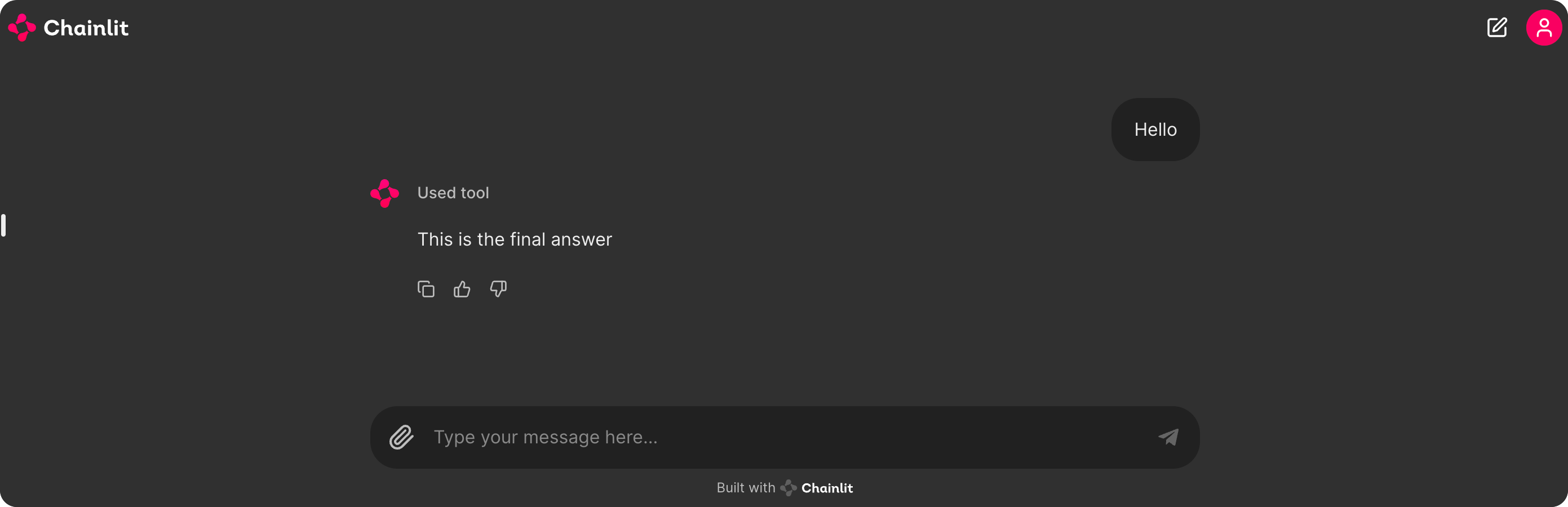
Lets take a simple example of a Chain of Thought that takes a user's message, process it and sends a response.
```py theme={null}
import chainlit as cl
@cl.step(type="tool")
async def tool():
# Simulate a running task
await cl.sleep(2)
return "Response from the tool!"
@cl.on_message
async def main(message: cl.Message):
# Call the tool
tool_res = await tool()
# Send the final answer.
await cl.Message(content="This is the final answer").send()
```
 ## Step API
There are two ways to create steps, either by using the the `@cl.step` decorator or by using the `cl.Step` class.
Easier to use but requires to split your step logic in a function.
More verbose but usable in any context as a Python Context Manager.
## Step API
There are two ways to create steps, either by using the the `@cl.step` decorator or by using the `cl.Step` class.
Easier to use but requires to split your step logic in a function.
More verbose but usable in any context as a Python Context Manager.