> ## Documentation Index
> Fetch the complete documentation index at: https://docs.chainlit.io/llms.txt
> Use this file to discover all available pages before exploring further.
# Teams
To make your Chainlit app available on Teams, you will need to create a Teams bot and set up the necessary environment variables.
## How it Works
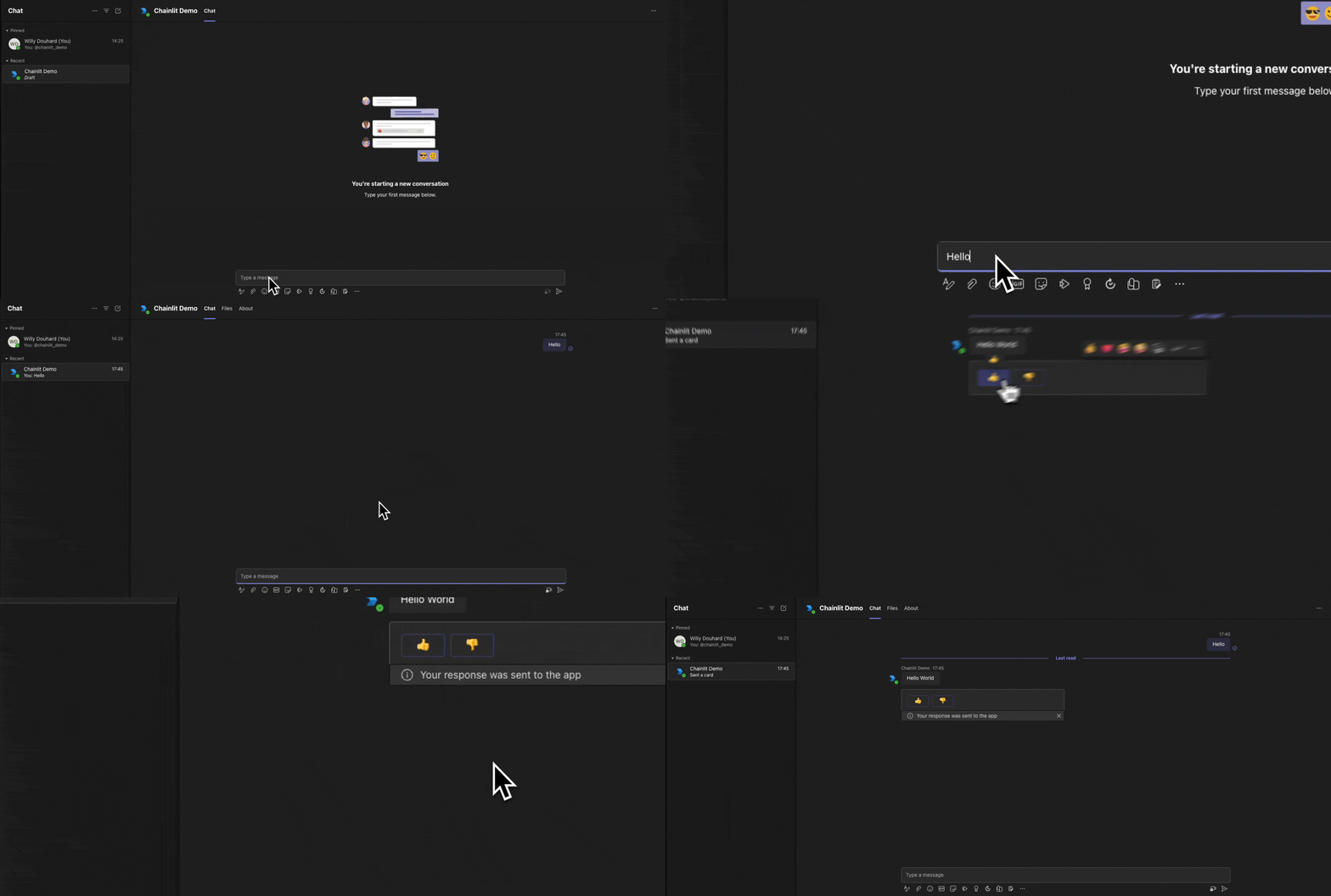
The Teams bot will be available in direct messages.
 ## Supported Features
| Message | Streaming | Elements | Audio | Ask User | Chat History | Chat Profiles | Feedback |
| ------- | --------- | -------- | ----- | -------- | ------------ | ------------- | -------- |
| ✅ | ❌ | ✅ | ❌ | ❌ | ❌ | ❌ | ✅ |
## Install the Botbuilder Library
The Botbuilder library is not included in the Chainlit dependencies. You will have to install it manually.
```bash theme={null}
pip install botbuilder-core
```
## Create a Teams App
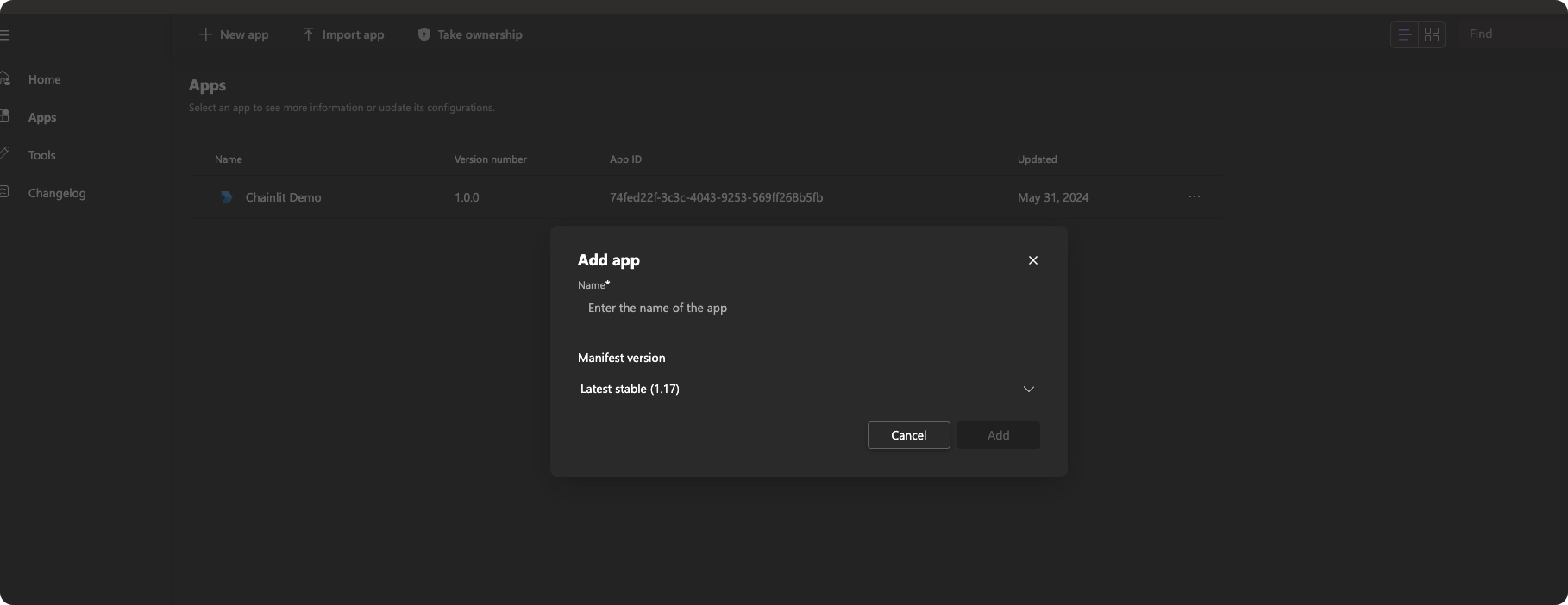
To start, navigate to the [App Management](https://dev.teams.microsoft.com/apps) page. Here, create a new app.
## Supported Features
| Message | Streaming | Elements | Audio | Ask User | Chat History | Chat Profiles | Feedback |
| ------- | --------- | -------- | ----- | -------- | ------------ | ------------- | -------- |
| ✅ | ❌ | ✅ | ❌ | ❌ | ❌ | ❌ | ✅ |
## Install the Botbuilder Library
The Botbuilder library is not included in the Chainlit dependencies. You will have to install it manually.
```bash theme={null}
pip install botbuilder-core
```
## Create a Teams App
To start, navigate to the [App Management](https://dev.teams.microsoft.com/apps) page. Here, create a new app.
 ## Fill the App Basic Information
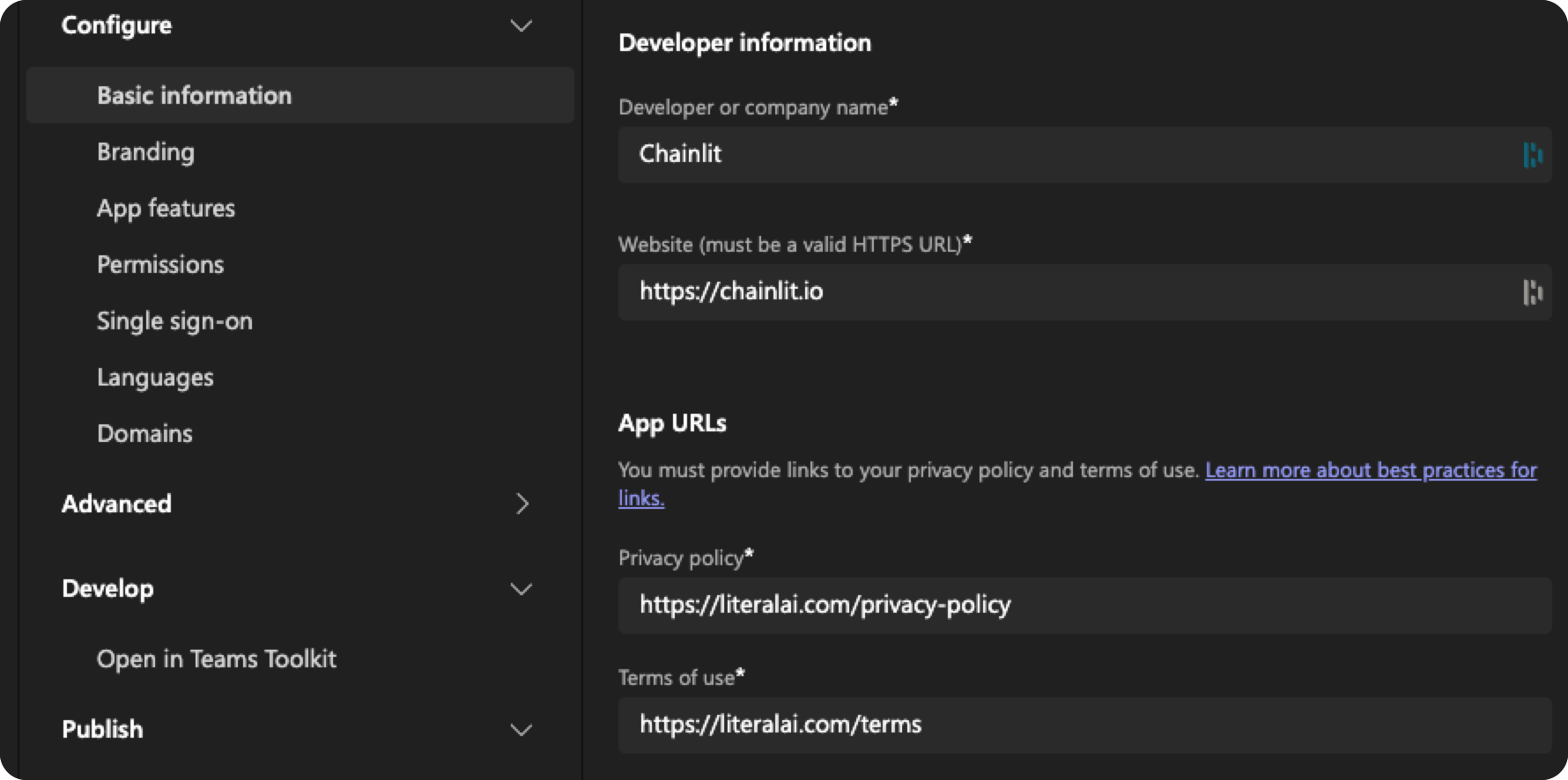
Navigate to Configure > Basic Information and fill in the basic information about your app.
You won't be able to publish your app until you fill in all the required fields.
## Fill the App Basic Information
Navigate to Configure > Basic Information and fill in the basic information about your app.
You won't be able to publish your app until you fill in all the required fields.
 ## Create the Bot
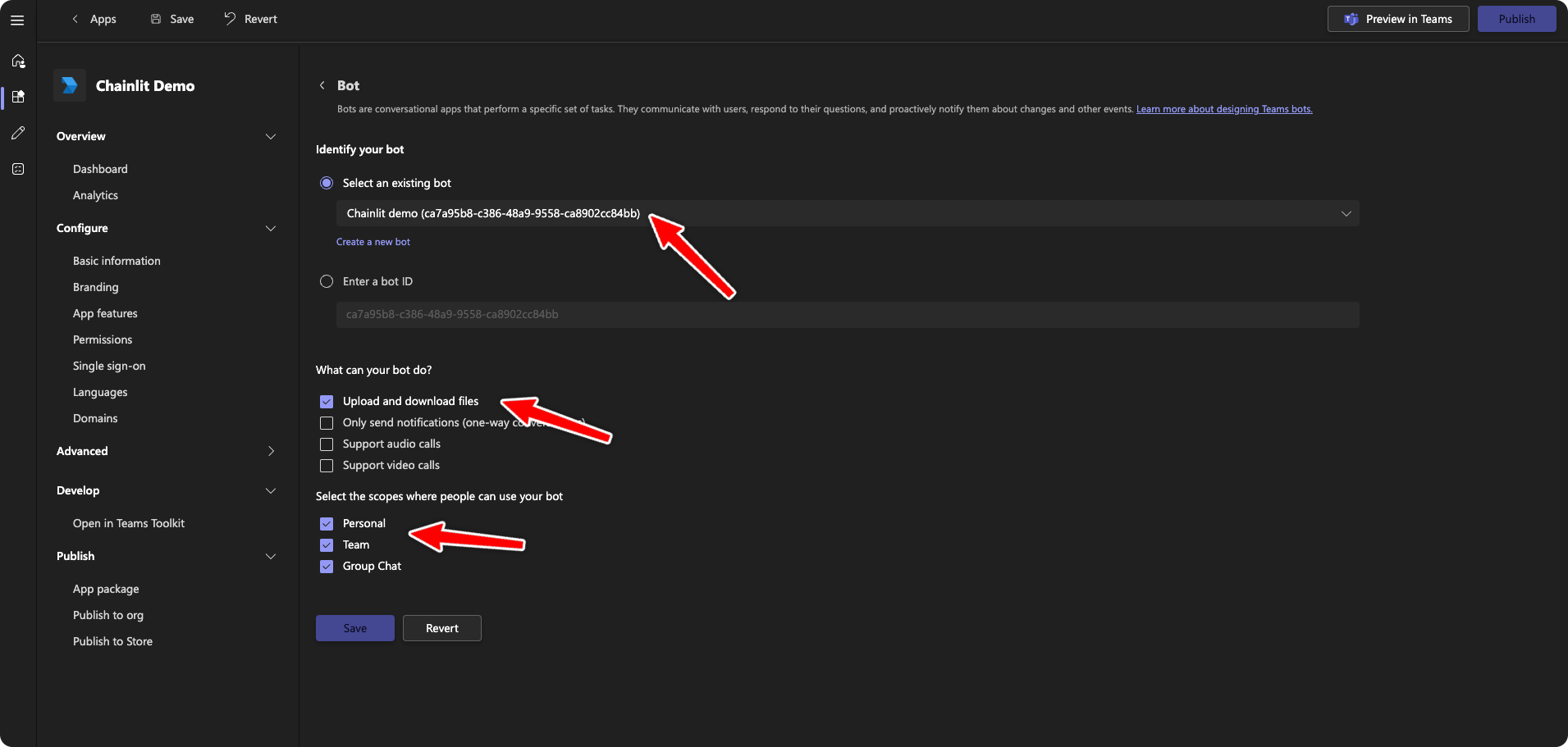
Navigate to Configure > App features and add the Bot feature.
Create a new bot and give it the following permissions and save.
## Create the Bot
Navigate to Configure > App features and add the Bot feature.
Create a new bot and give it the following permissions and save.
 ## Go to the Bot Framework Portal
Navigate to the [Bot Framework Portal](https://dev.botframework.com/bots/), click on the Bot you just created and go to the Settings page.
## Get the App ID
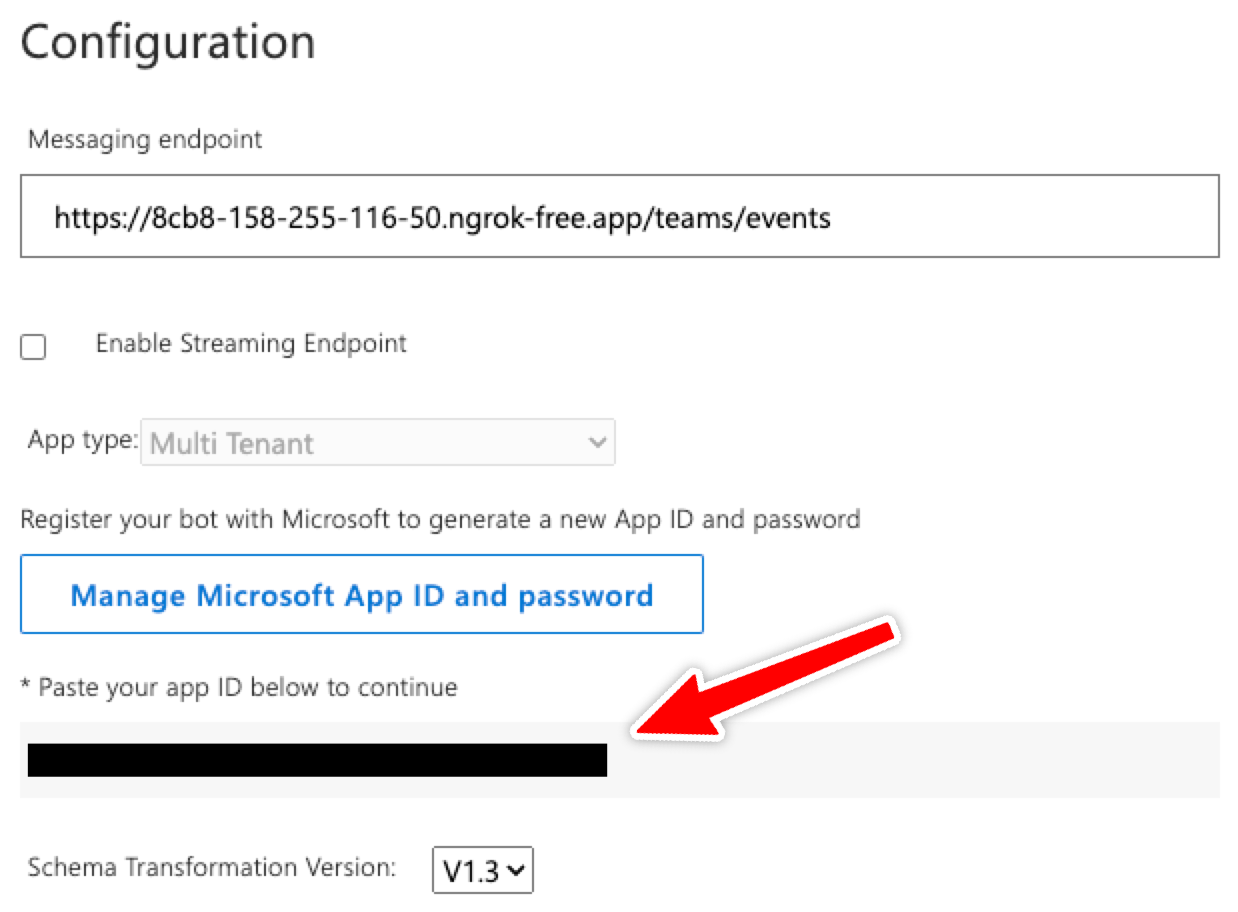
In the Bot Framework Portal, you will find the app ID. Copy it and set it as an environment variable in your Chainlit app.
```
TEAMS_APP_ID=your_app_id
```
## Go to the Bot Framework Portal
Navigate to the [Bot Framework Portal](https://dev.botframework.com/bots/), click on the Bot you just created and go to the Settings page.
## Get the App ID
In the Bot Framework Portal, you will find the app ID. Copy it and set it as an environment variable in your Chainlit app.
```
TEAMS_APP_ID=your_app_id
```
 ## Working Locally
If you are working locally, you will have to expose your local Chainlit app to the internet to receive incoming messages to Teams. You can use [ngrok](https://ngrok.com/) for this.
```bash theme={null}
ngrok http 8000
```
This will give you a public URL that you can use to set up the app manifest. Do not forget to replace it once you deploy Chainlit to a public host.
## Set the Message Endpoint
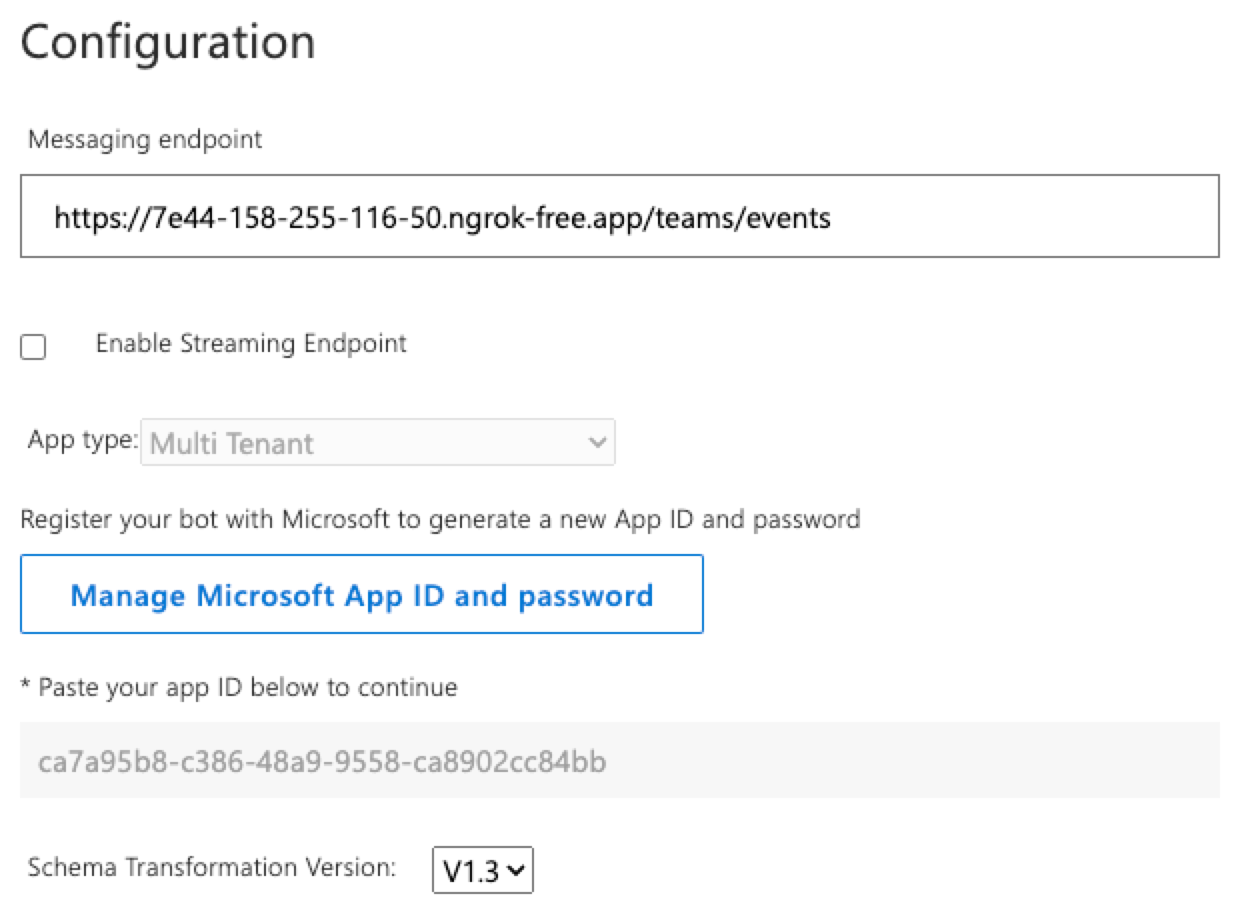
Under Configuration, set the messaging endpoint to your Chainlit app HTTPS URL and add the `/teams/events` suffix.
## Working Locally
If you are working locally, you will have to expose your local Chainlit app to the internet to receive incoming messages to Teams. You can use [ngrok](https://ngrok.com/) for this.
```bash theme={null}
ngrok http 8000
```
This will give you a public URL that you can use to set up the app manifest. Do not forget to replace it once you deploy Chainlit to a public host.
## Set the Message Endpoint
Under Configuration, set the messaging endpoint to your Chainlit app HTTPS URL and add the `/teams/events` suffix.
 ## Get the App Secret
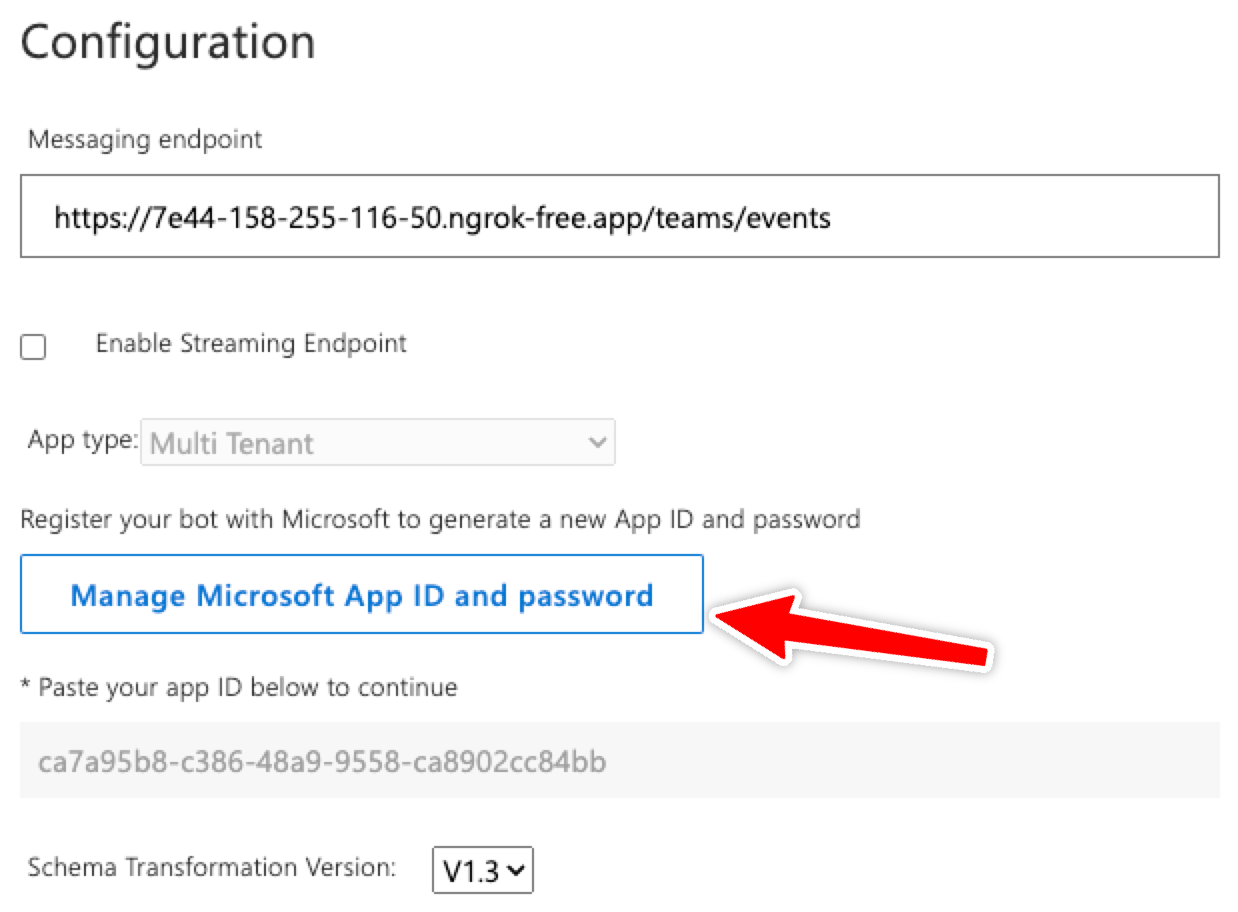
On the same page, you will find a blue "Manage Microsoft App ID and password" button. Click on it.
## Get the App Secret
On the same page, you will find a blue "Manage Microsoft App ID and password" button. Click on it.
 Navigate to Manage > Certificates & secrets and create a new client secret. Copy it and set it as an environment variable in your Chainlit app.
```
TEAMS_APP_PASSWORD=your_app_secret
```
## Support Multi Tenant Account Types
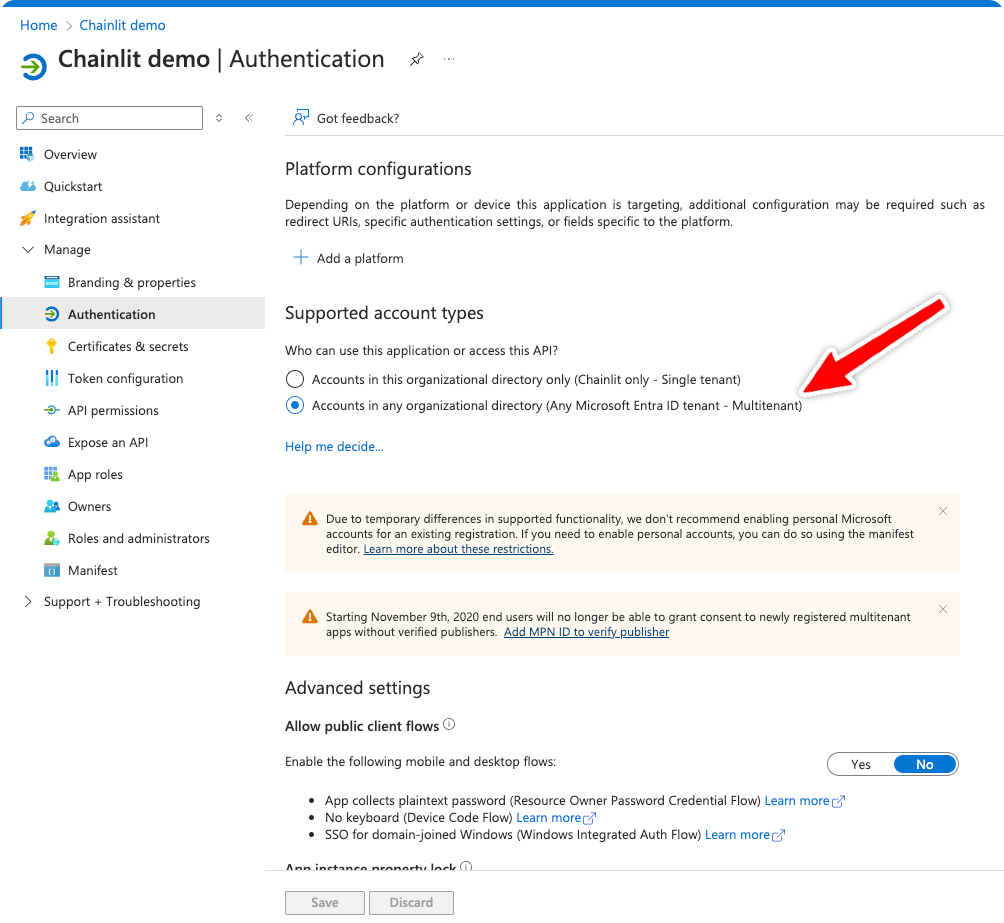
Navigate to Manage > Authentication and toggle "Accounts in any organizational directory (Any Microsoft Entra ID tenant - Multitenant)" then save.
Navigate to Manage > Certificates & secrets and create a new client secret. Copy it and set it as an environment variable in your Chainlit app.
```
TEAMS_APP_PASSWORD=your_app_secret
```
## Support Multi Tenant Account Types
Navigate to Manage > Authentication and toggle "Accounts in any organizational directory (Any Microsoft Entra ID tenant - Multitenant)" then save.
 ## Start the Chainlit App
Since the Chainlit app is not running, the Teams bot will not be able to communicate with it.
For the example, we will use this simple app:
```python my_app.py theme={null}
import chainlit as cl
@cl.on_message
async def on_message(msg: cl.Message):
# Access the teams user
print(cl.user_session.get("user"))
# Access potential attached files
attached_files = msg.elements
await cl.Message(content="Hello World").send()
```
Reminder: Make sure the environment variables are set and that your local
chainlit app is exposed to the internet via ngrok.
Start the Chainlit app:
```bash theme={null}
chainlit run my_app.py -h
```
Using -h to not open the default Chainlit UI since we are using Teams.
## Publish the Bot
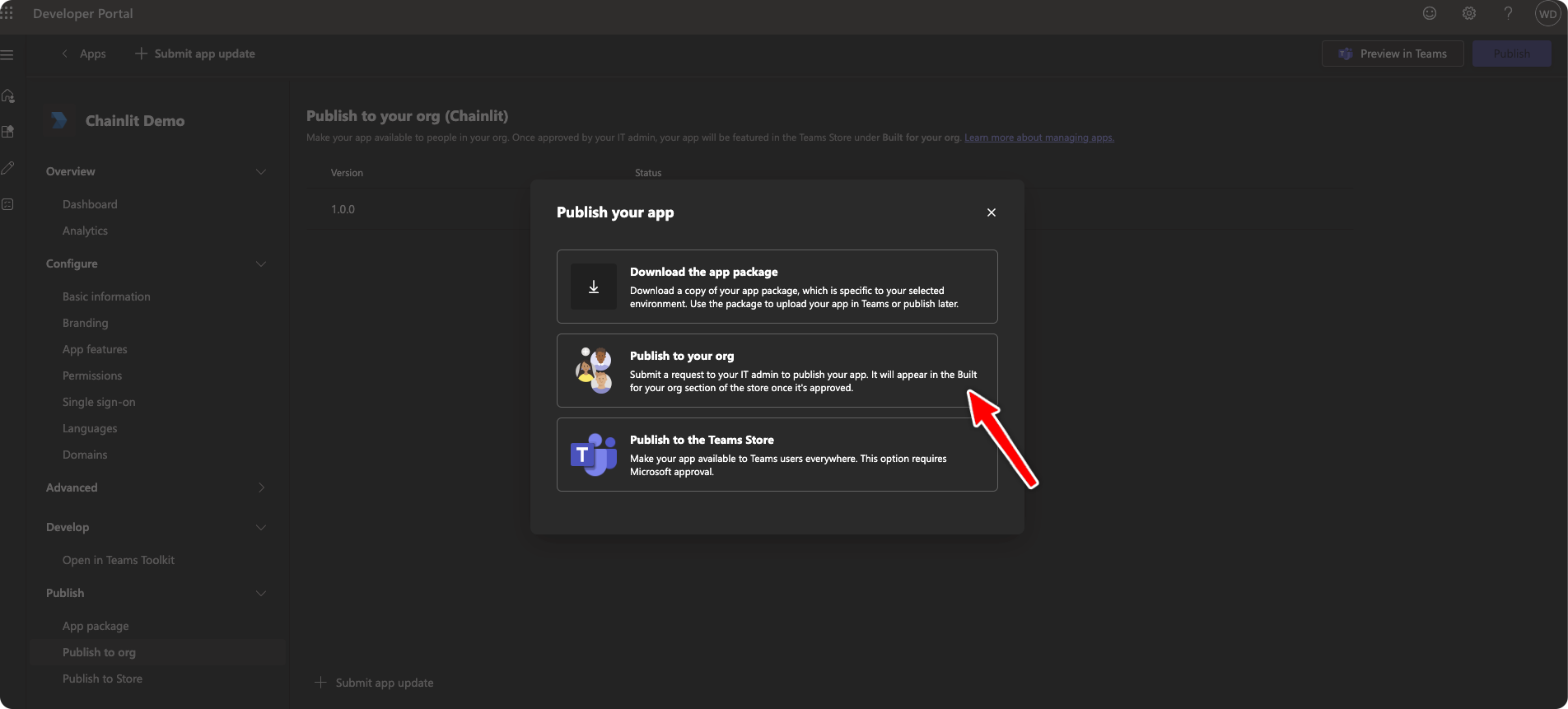
Back to the [App Management](https://dev.teams.microsoft.com/apps) page, navigate to "Publish to org" and click on "Publish".
## Start the Chainlit App
Since the Chainlit app is not running, the Teams bot will not be able to communicate with it.
For the example, we will use this simple app:
```python my_app.py theme={null}
import chainlit as cl
@cl.on_message
async def on_message(msg: cl.Message):
# Access the teams user
print(cl.user_session.get("user"))
# Access potential attached files
attached_files = msg.elements
await cl.Message(content="Hello World").send()
```
Reminder: Make sure the environment variables are set and that your local
chainlit app is exposed to the internet via ngrok.
Start the Chainlit app:
```bash theme={null}
chainlit run my_app.py -h
```
Using -h to not open the default Chainlit UI since we are using Teams.
## Publish the Bot
Back to the [App Management](https://dev.teams.microsoft.com/apps) page, navigate to "Publish to org" and click on "Publish".
 ## Authorize the Bot
The Bot will have to be authorized by the Teams admin before it can be used. To do so navigate to the [Teams admin center](https://admin.teams.microsoft.com/policies/manage-apps) and find the app.
## Authorize the Bot
The Bot will have to be authorized by the Teams admin before it can be used. To do so navigate to the [Teams admin center](https://admin.teams.microsoft.com/policies/manage-apps) and find the app.
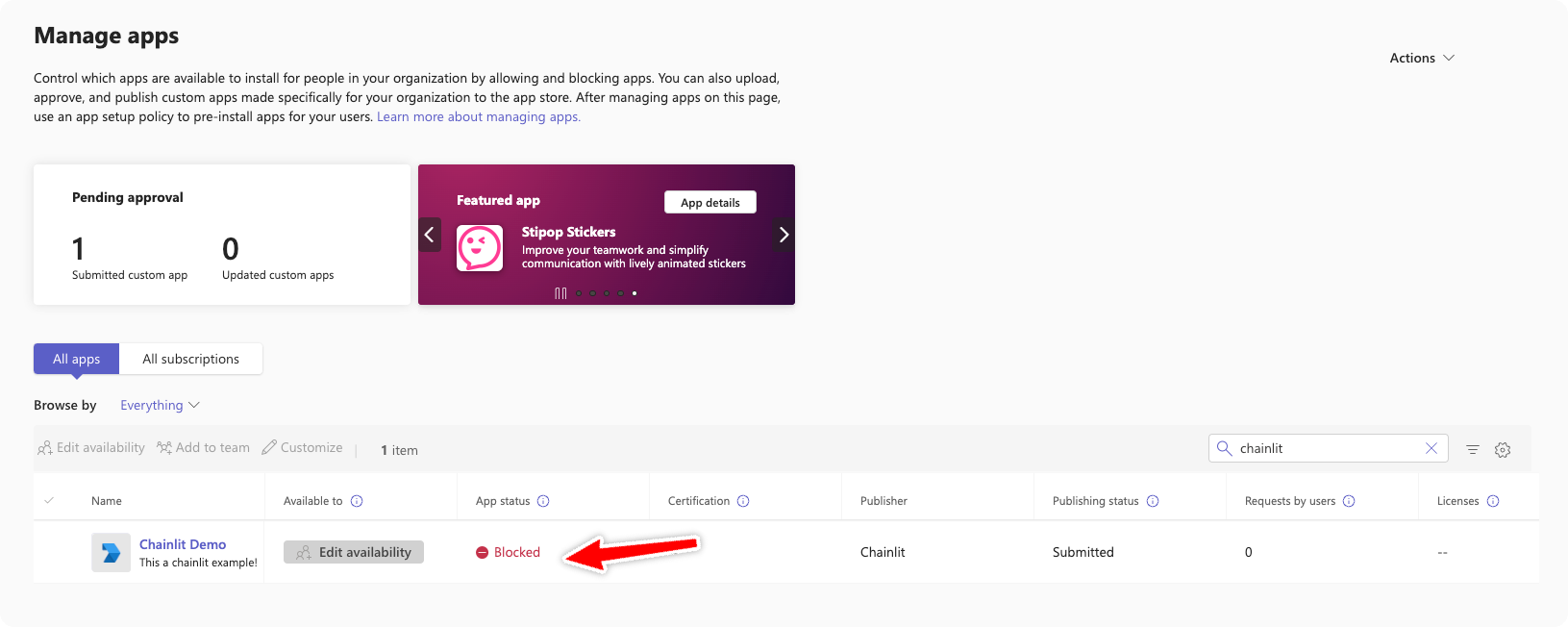 Then authorize it.
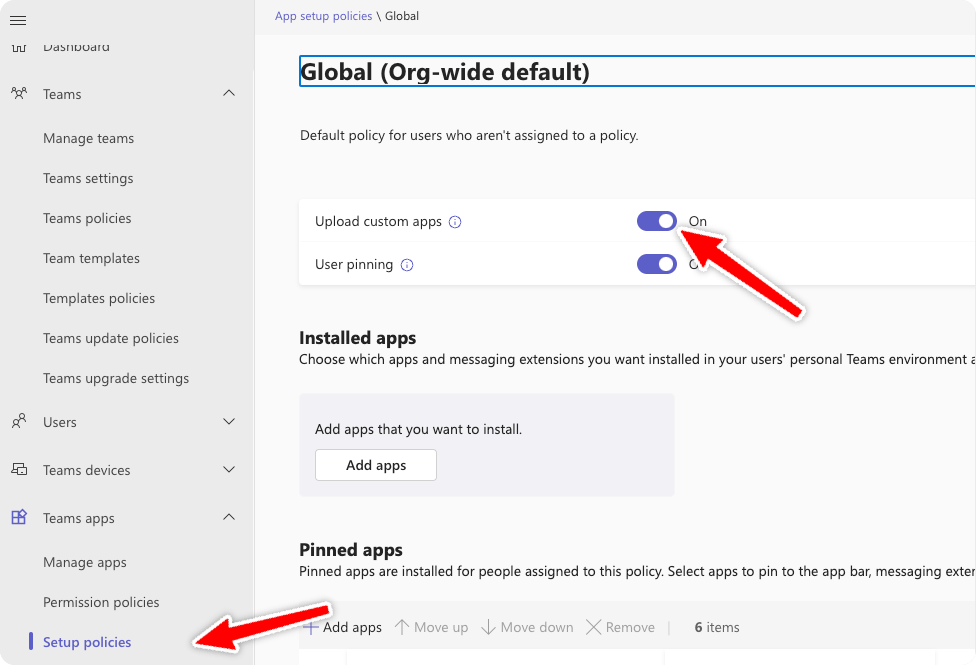 You should now be able to interact with your Chainlit app through Teams.